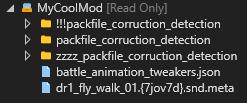
Total War games uses a file format called Pack. This is a filesystem "packed" into a single file. The game uses multiple packfiles, while mods typically is just one packfile. AssetEditor has multiple ways to work with Packfiles and allows the user to open multiple at the same time.
While working in AE, the pack format is not used directly, instead a normal folder is created on disk. This is your "project". When saving a project, a packfile is generated.
General workflow:
Create project => Add, remove or modify files => Save project, which generates the packsfile
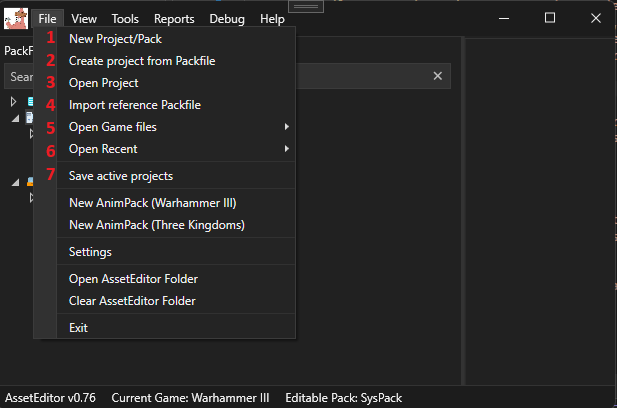
There are two ways to create a new project:
1. Use the "New project/Pack" (Option 1 in image) which prompts the user to select a folder on disk. This is where your project will be created.
2. Use the "Create project from PackFile" (Option 2 in image), which will take an existing packfile and convert it to a folder on your computer.
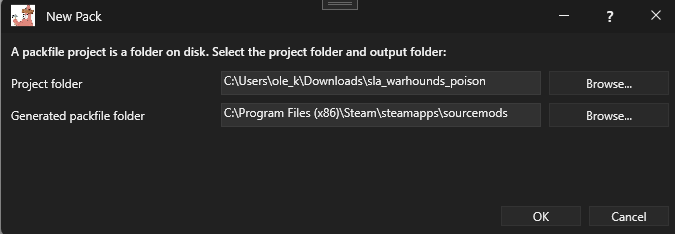
After selecting where the project is placed, and where the packfile is generated to, press OK.
An existing project can be opened by:
1. Open an exising project by selecting "Open project". (Option 3 in image)
Game files can be loaded using the "Open game files"(Option 4 in image). Loading a packfile this way will not make it editable, but the files can be copied to the main packfile. This is useful for modding, as you can copy files from the game into your mod. AssetEditor requires a game packfile to be loaded before a project can be created. This is because the game files are required for a lot of the functionality in AssetEditor, and without them, the user would not be able to create a mod. Game files are typically located in the "data" folder of the game installation. The user can select the "data" folder, and AssetEditor will automatically load all packfiles in that folder for the prefered game.
Other packfiles/mods can be added as references using the "Open packfile" (Option 5 in image). This will open a packfile and make it available for copying files from. The packfile will not be editable.
AssetEditor always have one main project/pack, which is the pack that is being edited. This pack is editable, and all changes are made to this pack. When a new packfile is opened, it becomes the main pack. You can change the main pack by right clicking on a packfile in the packfile explorer and selecting "Set as main pack". The main pack is marked bold text in the packfile explore and the name displayed at the bottom.
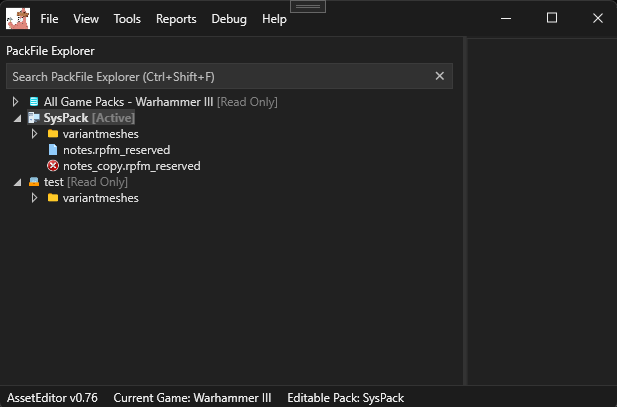
Files inside a packfile can be draged and dropped into new locations. New folder can be created by right clicking on a folder and selecting "Create new folder".
Its possible to import files from disk by right clicking on a folder and selecting "Import file". This will import the file into the packfile in the same location as the folder. If a file with the same name already exists, it will be overwritten.
Right clicking on a file or folder in the packfile explorer will open a context menu with options to delete or rename.
If a folder in a different packfile is selected, the user can right click and pick "Copy to main pack". This will copy the file or folder to the same location in the main pack. If a file with the same name already exists, it will be overwritten.
The project can be edited inside AssetEditor, but it is also possible to edit the project directly on disk. When a file is changed on disk, AssetEditor will detect the change and update the file in the packfile explorer. If a file is deleted on disk, it will be removed from the packfile explorer. If a file is added on disk, it will be added to the packfile explorer.
Files can be marked as ignorable, which means they will not be included in the packfile when it is generated. This is useful for files that are only needed during development, but not in the final mod. Ignored files are marked with a red "X" in the packfile explorer. Right clicking on a file or folder and selecting "Ignore" will mark it as ignorable. Right clicking on an ignorable file or folder and selecting "Unignore" will remove the ignorable mark.
When a packfile is edited, the name of the packfile is marked with an asterisk and the name changes to red.
When a project is saved, a new packfile is generated on disk. The packfile will be saved in the same location as the project folder, with the same name as the project folder. If a packfile with the same name already exists, it will be overwritten.
When a packfile is saved, the asterisk is removed and the name changes back to black.

It is recommended to use a version control system like GIT to keep track of changes in your project. This allows you to easily revert changes, collaborate with others, and maintain a history of your project.Its easy to configure and makes the modding process much safer and enjoyable.